

Plan Availability
- Non-platform
- Shopify
- Salla
Overview
Most large businesses store their operational data in a data warehouse, which acts as a single source of truth. Order management, inventory, CRM and communication tools push their data into it, and an analytics tool (such as PowerBI or Metabase) reads from it to build dashboards. With the Data Warehouse Ingestion Module, Gameball becomes part of this setup. You can:- Combine loyalty data with revenue, inventory and customer communication data
- Build cross-system dashboards in one place
- Run advanced analysis without relying only on Gameball’s in-dashboard reports
For example, by joining order data from your POS system with transaction data from Gameball, you can build one dashboard that shows revenue and the points earned on the same orders, revenue by loyalty tier, or how loyalty actions relate to repeat purchases.
How to Set Up the Integration
1
Open Data Warehouse Integration
Go to Admin Settings in the Gameball dashboard, then navigate to Data Warehouse Integration and click Set Up Connection.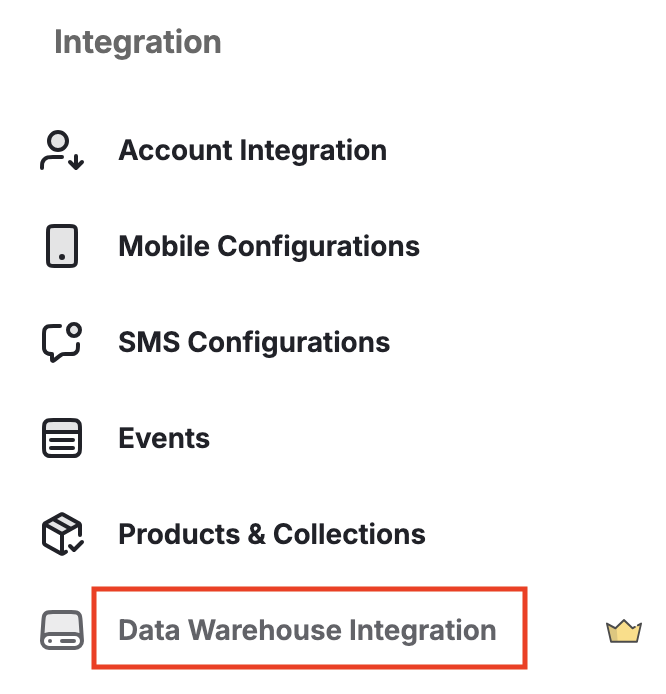
2
Select Data Warehouse Provider
Choose your data warehouse provider (for example, Amazon Redshift), then click Next.
3
Add Connection Details
Enter the required account and connection details, then click Next.
4
Define Data Push Frequency
Choose how often Gameball should push data:
- Daily
- Weekly
- Monthly
5
Select Data Models
Choose which Gameball tables you want to push: Transactions, Members, Transaction earning sources, Transaction deduction sources, Coupons and Achievements.
6
Submit Request
Once submitted, the request is sent to Gameball’s technical team.
What Happens After Submission
The connection is not established automatically.Before You Start
Five rules apply to every table. Most numbers that don’t match the dashboard break one of them.- Remove deleted rows. Keep only rows where
is_deleted= 0. A row that is voided on Gameball’s side is never removed from your copy; it is sent again withis_deleted= 1. - Convert times to your program’s time zone. Every timestamp is in UTC. The dashboard groups days and months in your program’s time zone, so add your offset before grouping (for example +3 hours for Riyadh). Without it, a few hours at each month edge land in the wrong month.
- Check how fresh your copy is. Your copy is as recent as its last sync. The latest
updated_atin a table tells you when that was; anything after it is not in your copy yet, while the dashboard is live. - Join on the Gameball ids. Columns starting with
gameball_are Gameball’s ids and join the tables to each other. Join customers ongameball_member_id, notcustomer_unique_id: the same customer id can sit on more than one Members row when a customer was deleted and added again.customer_unique_id,transaction_idandorder_idare your own ids. - Points vs money. Points columns are counts of points. A money value is points ×
redemption_factorin your currency (with a factor of 0.01, 100 points = 1 SAR).points_valuealready holds that amount.
How the Tables Connect
Every table joins to Members ongameball_member_id. The two sources tables join to Transactions on gameball_transaction_id, which they call gameball_earn_transaction_id (the earning) and gameball_deduct_transaction_id (the deduction).
Available Data Models
Gameball shares six tables with your data warehouse. You choose which ones to enable during setup.Transactions
Transactions
One row per points movement: every time a customer gains points (
direction = +) or loses them (direction = −). It is the main table for earned, redeemed, expired and outstanding points.Transaction types
Members
Members
One row per customer, as they are today: profile, tier, referral details and current balances. Balances here are today’s only; for any past date use Transactions.
A customer’s available balance =
customer_points + customer_pending_points.Transaction earning sources
Transaction earning sources
One row per part of an earning: an earned transaction is split into what produced its points (a cashback rule, a campaign, a tier reward, a product line). The rows of one earning add up to that earning’s
points_amount in Transactions.Transaction deduction sources
Transaction deduction sources
One row per pair of a deduction and the earning it drew from: when 500 points are redeemed from two earlier earnings, there are two rows. It answers “which earned points were used”.
For period totals, use Transactions. The deduction sources totals can be lower, because a redemption that was later refunded is not counted as used points.
Coupons
Coupons
One row per coupon given to a customer. A multi-use code has one row per use: its own row is the first use, and every later use is a new row given and used at that moment.
total_order_count is removed: with one row per use, count used rows instead.Achievements
Achievements
One row per achievement a customer reached: a purchase reward, a campaign completed, a tier reached, a referral or a manual award.
For points totals use Transactions, not
achieved_points: Transactions also holds cashback, manual and refund points, and every deduction.Answering Common Questions
Points earned, redeemed and expired in a period
All of these come from Transactions: keepis_deleted = 0, convert created_at to your time zone, keep the rows inside your period, and add up points_amount for the rows below.
Split by channel or store. Use
branch_unique_id and merchant_unique_id. They hold the branch and merchant you sent with the activity, and are empty when none was sent. Which branches count as online, and whether an empty branch means online, depends on how your integration sends orders.
Split by how points were earned. Use transaction_type or earning_source on the earned rows.
Outstanding balance
Outstanding points (the dashboard’s Total available points) are the points customers hold: everything earned, minus everything that left the wallet for any reason.Points expiring soon
Points that will expire in the next N days are the unused part of active earned rows whose expiry date falls in that window. The dashboard’s expiring card uses the next 15 days. In Transactions, keep rows wheredirection = +, is_deleted = 0, transaction_status = Active and points_expiry_date is after now and within the window. Add up points_amount − points_used_amount.
Where points came from and where they went
Transaction earning sources says what produced each earning; Transaction deduction sources says which earnings each redemption, expiry or cancellation used. Both join to Transactions ongameball_transaction_id.
Coupons given, used and expired
All from Coupons, keepingis_deleted = 0. Each row is one coupon given to one customer, and each use of a multi-use code is its own row.
Availability & Enablement
The Data Warehouse Ingestion Module is offered as an add-on.1
Enable the Feature
The feature must be enabled on your account before use.
2
Coordinate with Your CSM
Coordinate with your Customer Success Manager to start the implementation process.
Related Articles
Configure Time Zone
Set the time zone your dashboard groups days and months by.
Launch the Earn Program
Configure how customers earn points.
Configure Redemption
Set up how customers redeem their points.