

Offering customers multiple ways to redeem their points is crucial for enhancing gamification and their loyalty to your brand. With Gameball’s versatile redemption system, you can create a seamless and rewarding experience for your customers. By setting up various redemption options, you empower your customers to choose how they want to utilize their points.
Navigating to Redeem Points
From the left-side menu, go to Programs and click Redeem Points. The page opens on the Configuration tab, where all your redemption options are listed.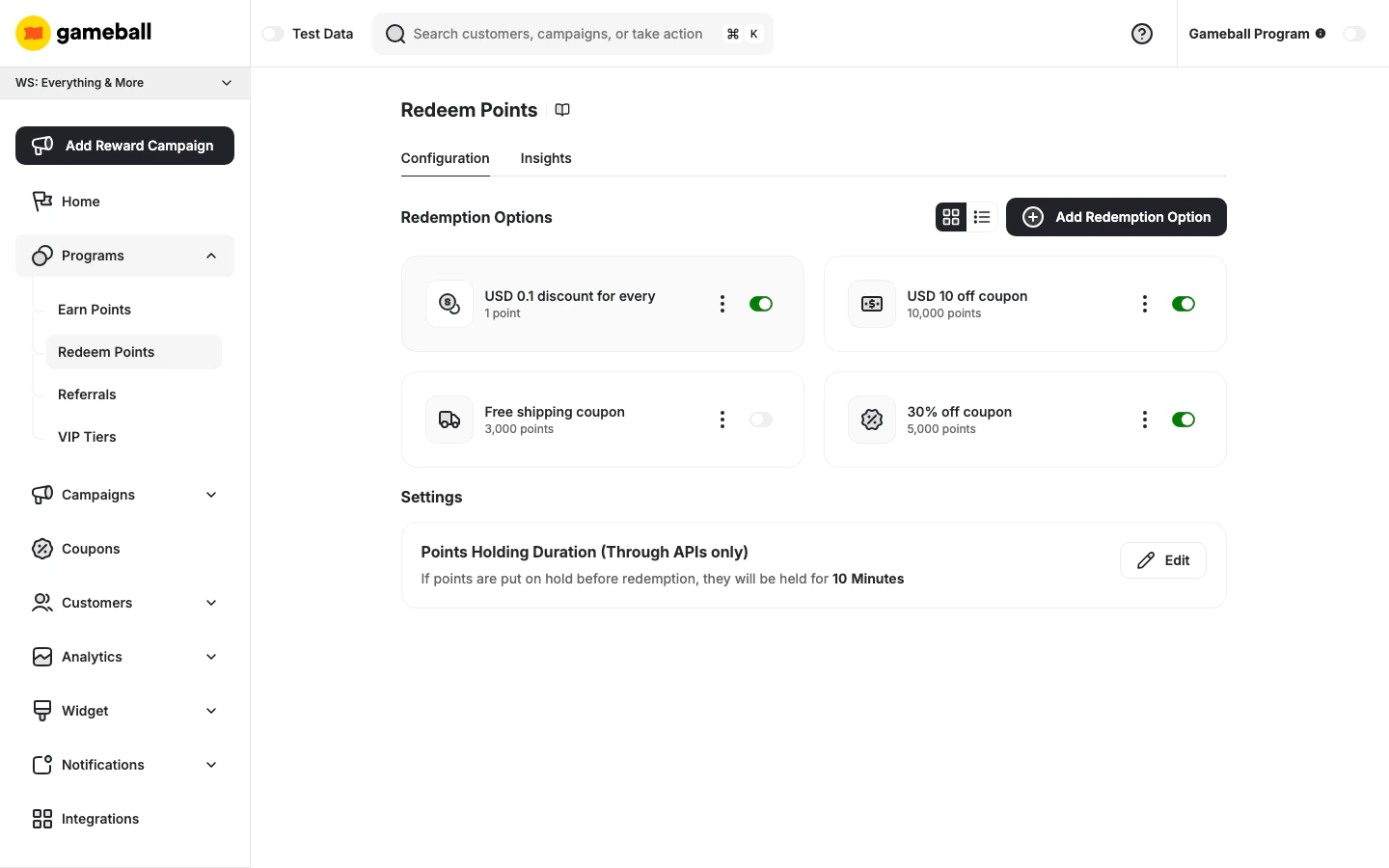
Default Redemption Rule
The Redemption Options section always includes a default dynamic rule displayed as “USD X discount for every Y point”. This rule defines the base conversion rate between points and currency — how much monetary value a single point is worth when customers redeem. To edit it, click the ⋮ menu on the default rule card and select Edit. This opens the Flexible Redemption Option page where you can configure: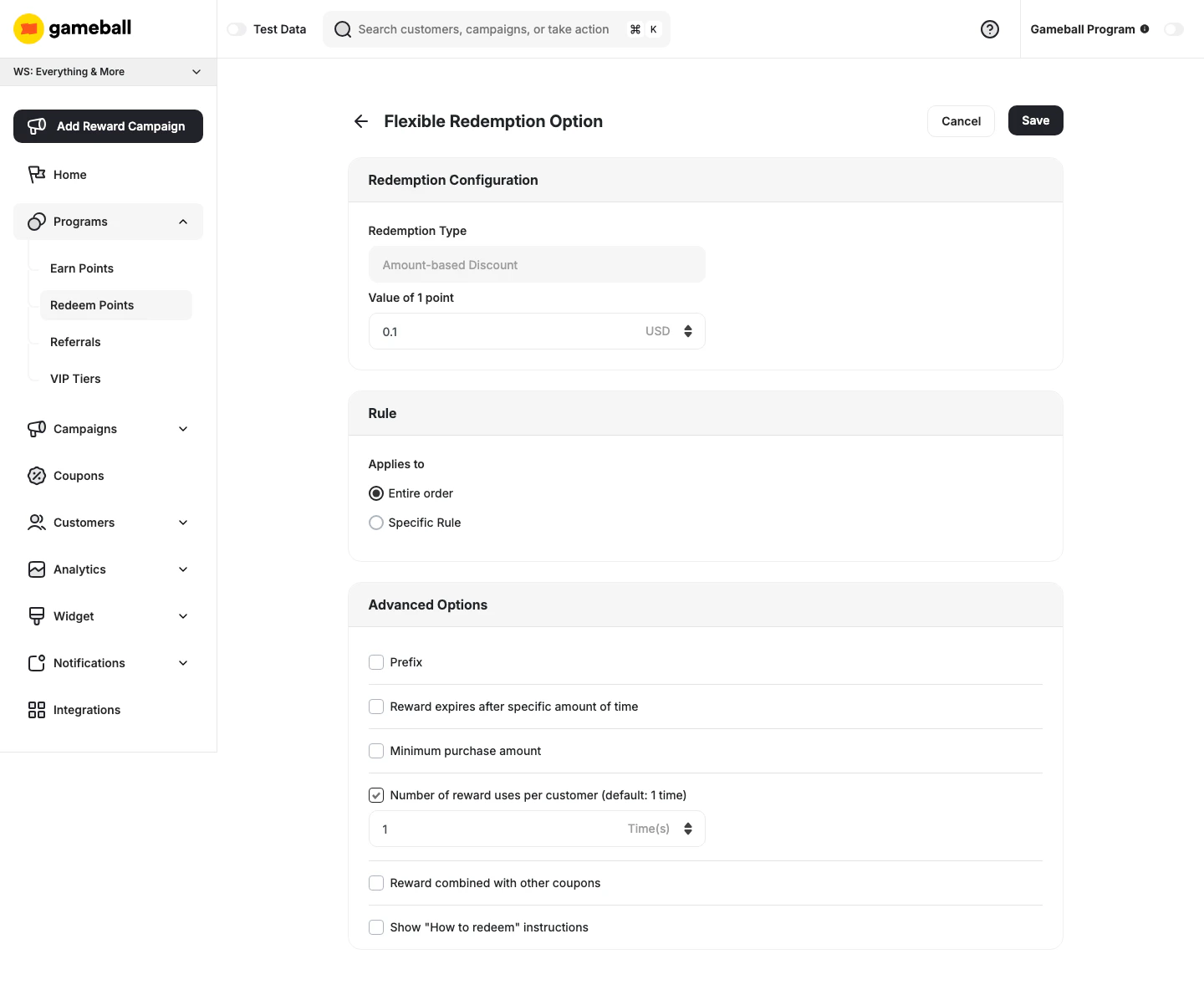
- Redemption Type — locked as Amount-based Discount (cannot be changed)
- Value of 1 point — the monetary equivalent of a single point (e.g., 0.1 USD)
- Applies to — Entire order or Specific Rule
The cashback percentage shown on the earn rule edit panel is calculated based on this value. Changing the Value of 1 point here will update that percentage automatically.
Managing Redemption Options
All configured redemption options appear in the Redemption Options section. You can toggle between a card view and a list view using the icons at the top right of the section. Each option displays its redemption type, the points required to redeem it, and a toggle to enable or disable it directly.Adding a New Redemption Option
1
Click Add Redemption Option
On the Redeem Points page, click Add Redemption Option.
2
Configure the Option
You will be taken to the Custom Redemption Option page.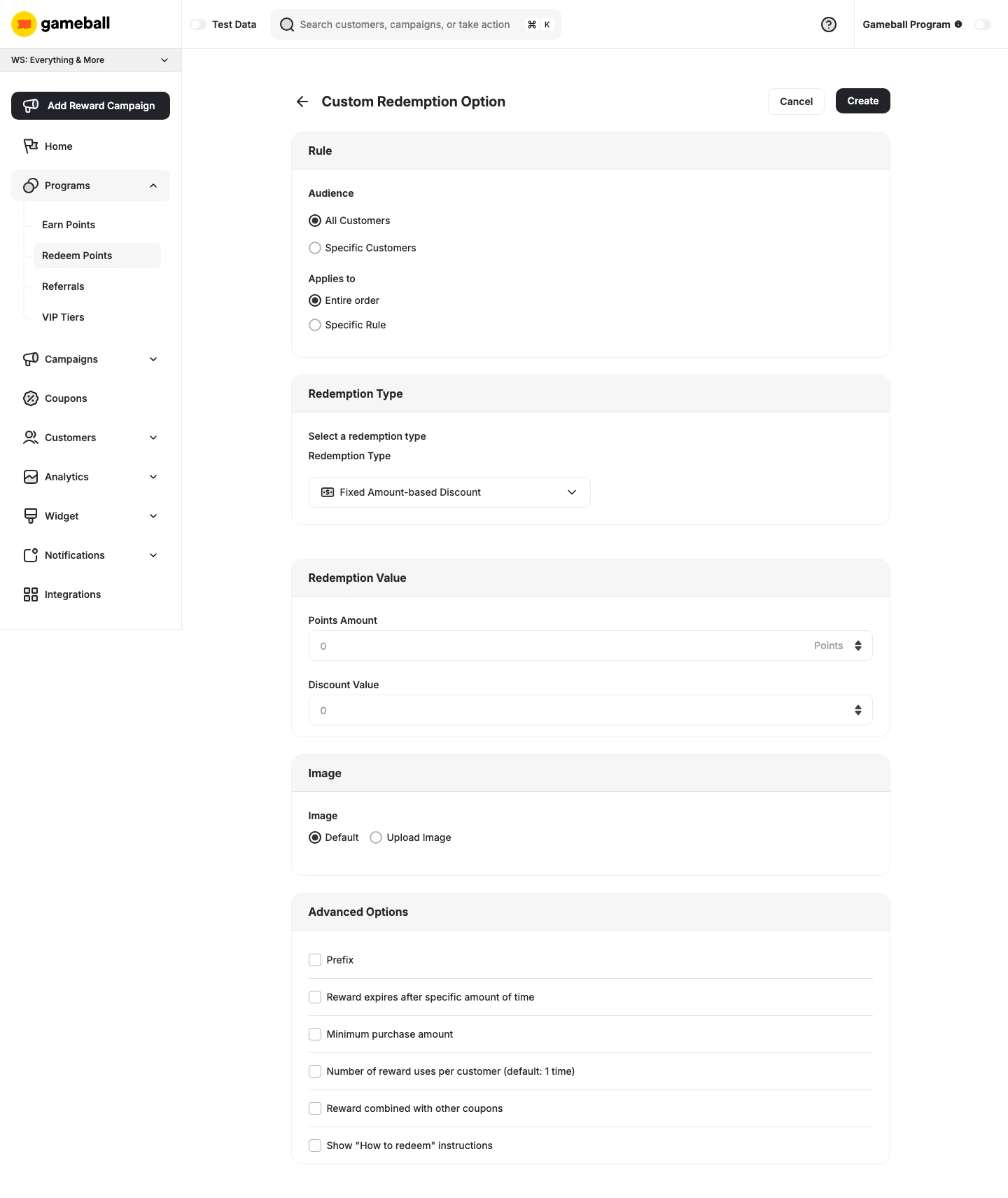
- Audience — choose whether this option applies to All Customers or Specific Customers
- Applies to — select Entire order or Specific Rule
- Select a redemption type from the dropdown (e.g., Fixed Amount-based Discount, Percentage-based Discount, Free Shipping, Free Product)
- Enter the reward name in English (EN) and Arabic (AR) — up to 50 characters each
- Points Amount — the number of points required to redeem this option
- Discount Value — the value of the discount awarded
- Choose Default or Upload Image to set a custom icon for this redemption option
3
Create
Click Create to save the redemption option. It will appear in your Redemption Options list.
Available Reward Types
Online Only Rewards
Online Only Rewards
- Percentage-Based Discount: Customers can exchange their points for a coupon that provides a percentage discount on their next purchase.
- Fixed Amount Discount: Customers can redeem their points for a coupon that offers a fixed-value discount on their purchase.
- Free Shipping: Customers can use their points to get free shipping on their order.
- Free Product: Customers can redeem their points to receive specific products at no cost.
- Percentage-Based Cashback (Non-Platform Only): Customers can use a coupon to receive a percentage of their purchase amount back as cashback, credited to their wallet in points or store credit.
- Fixed Amount Cashback (Non-Platform Only): Customers can use a coupon to receive a fixed amount of cashback, credited to their wallet in points or store credit — regardless of the total purchase amount.
- Percentage-Based Fees Discount (Non-Platform Only): Customers can receive a coupon that applies a percentage discount to transaction fees.
POS Rewards (Shopify Only)
POS Rewards (Shopify Only)
- POS Fixed Amount Coupon: Redeem points for a specific amount off at point-of-sale.
- POS Percentage Coupon: Redeem points for a percentage discount at point-of-sale.
Redemption Groups
Redemption Groups let you organise your redemption options into named categories — for example, “Coffee”, “Merch”, or “Experiences” — so customers can filter by group in the widget’s Redeem tab instead of scrolling through every option.Setting Up Redemption Groups
1
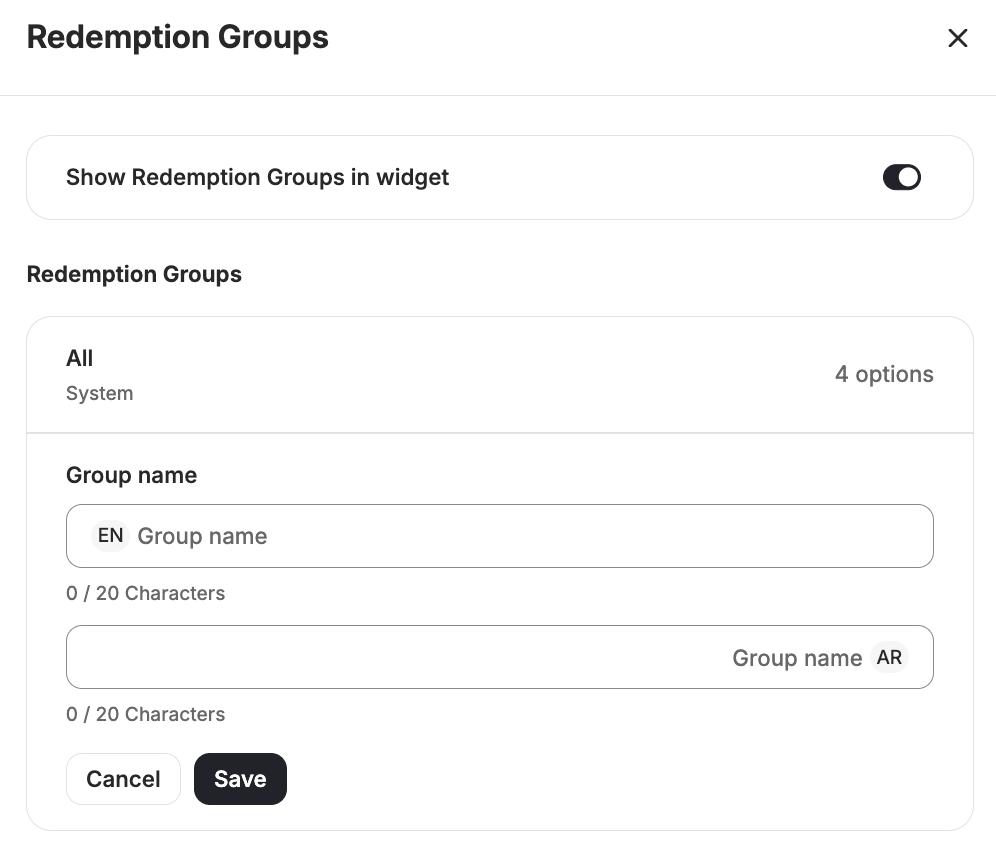
Open Manage Redemption Groups
On the Redeem Points page, click Manage Redemption Groups.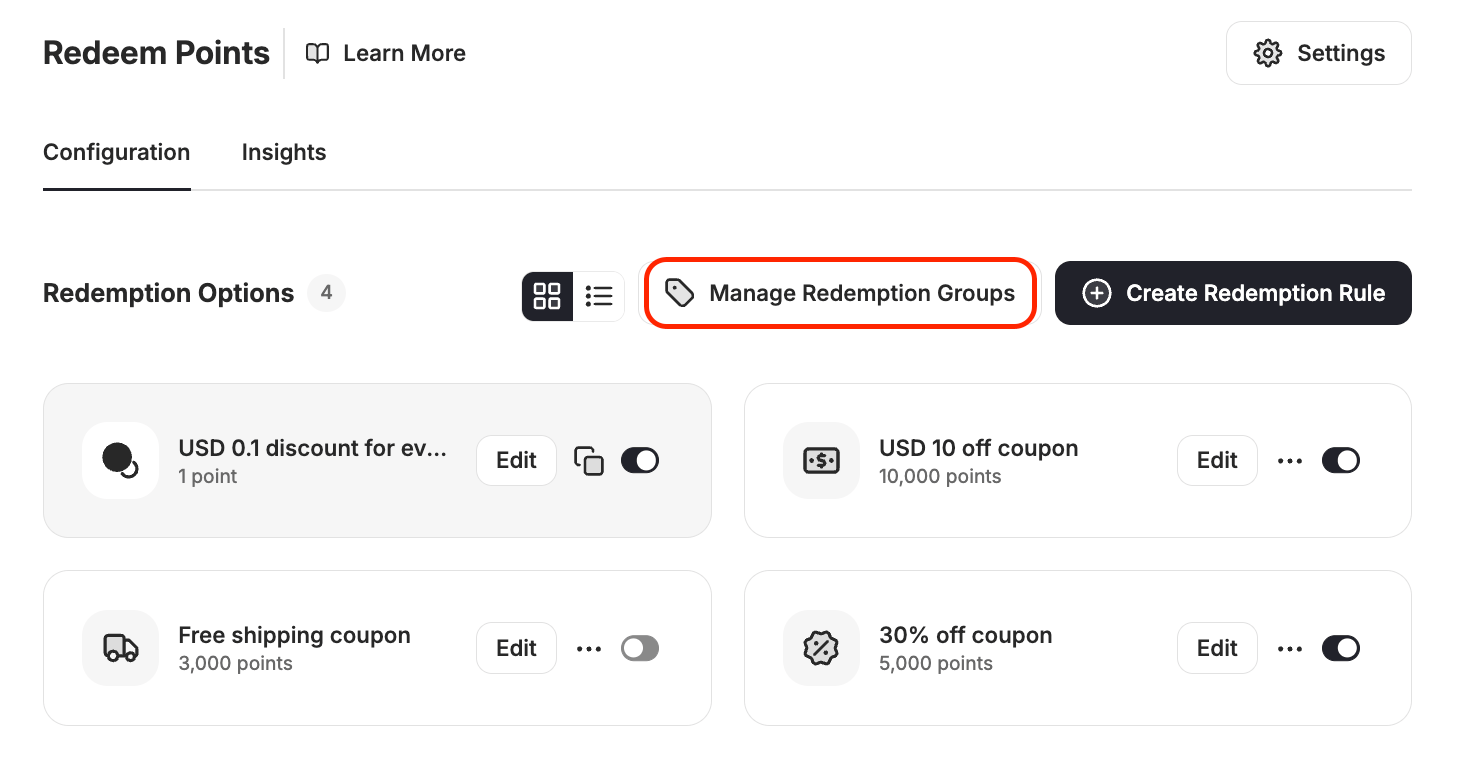
2
Enable Groups in the Widget
Turn on Show Redemption Groups in widget to display group filter chips to customers.
3
Create a Group
Enter a group name in English and Arabic (up to 20 characters each), then click Save.
4
Assign Redemption Options
Open any redemption option and assign it to a group, or use the bulk banner that highlights options not yet assigned to a group.
You can turn groups off at any time. Your group names and assignments are saved and restored when you turn them back on.Merchants who have not set up any groups will see automatic chips by reward type in the widget instead: Fixed Amount, Percentage Discount, Free Shipping, and Free Product.
Settings
Points Holding Duration
Set the duration that holds the redemption request until your customer completes the payment process — for example, when using points as partial payment alongside another payment method. Click Edit next to Points Holding Duration (Through APIs only) to configure:- Holding Duration Value — enter a number
- Points Holding Time — choose the unit: Minutes, Hours, or Days
Insights and Analytics
Click the Insights tab at the top of the page to analyze the performance of each redemption option.Related Articles
Launch and Configure Your Earn Pointing System
Configure how customers earn points for their purchases.