> ## Documentation Index
> Fetch the complete documentation index at: https://docs.gameball.co/llms.txt
> Use this file to discover all available pages before exploring further.
# How Do I Set Up Digital Wallet Passes?
> Let customers save their Gameball loyalty card to Apple Wallet or Google Wallet as a branded digital pass.
| Platform | Plan | Channel |
| - | - | - |
| All | Upon Request | Mobile |
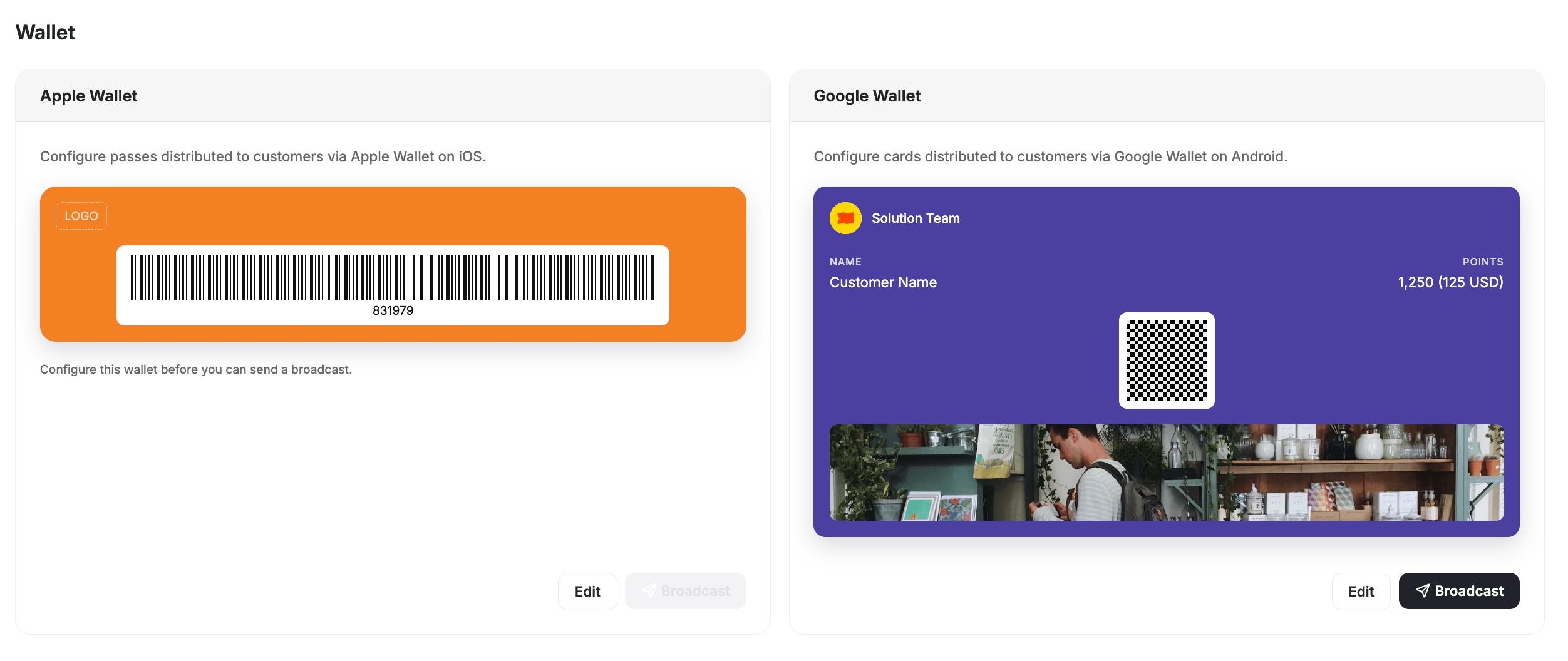
Gameball supports **Apple Wallet and Google Wallet loyalty passes**, giving customers a native way to carry their loyalty card on their phones. Customers can save their pass to their wallet app, check their points balance, and scan it in-store — no app required.
Digital Wallet passes are an add-on feature, available upon request. Contact [support@gameball.co](mailto:support@gameball.co) or your account manager to enable it for your account.
 ***
## Benefits
* **Always accessible** — customers carry their loyalty card alongside their boarding passes, credit cards, and tickets.
* **Strengthen your brand** — the pass is fully branded with your logo, colors, and design.
* **Real-time updates** — points balance and tier reflect automatically whenever they change.
* **In-store ready** — the pass can be scanned at checkout to earn or redeem points instantly.
* **No app required** — customers save and access their pass directly from their phone's native wallet.
***
## How Does It Work?
* Each customer receives a **unique Apple Wallet pass** linked to their Gameball loyalty account.
* The pass displays:
* Customer name
* Current points balance
* Tier / level
* QR code for in-store scanning
* Your branded design (logo, colors, theme)
* Customers tap **"Add to Apple Wallet"** from your loyalty portal or scan a QR code to save the pass.
* **Automatic sync:** points and tier updates reflect on the pass in near real-time.
* **QR scanning:** the pass can be scanned at checkout for earning and redemption.
* Each customer can generate a **unique Google Wallet loyalty card** from their Gameball account.
* The card displays:
* Customer name
* Current points balance
* Tier / level
* QR or barcode for scanning
* Your branded design (logo, colors, theme)
* Customers tap **"Add to Google Wallet"** from your loyalty portal to save the card.
* **Automatic sync:** points balance and tier updates reflect in near real-time.
* **POS compatibility:** cards can be scanned at checkout to earn or redeem points instantly.
***
## Related Articles
Explore all available Gameball integrations.
Configure what customers see in the loyalty widget.
This documentation is built and hosted on [Mintlify](https://mintlify.com), a developer documentation platform.
***
## Benefits
* **Always accessible** — customers carry their loyalty card alongside their boarding passes, credit cards, and tickets.
* **Strengthen your brand** — the pass is fully branded with your logo, colors, and design.
* **Real-time updates** — points balance and tier reflect automatically whenever they change.
* **In-store ready** — the pass can be scanned at checkout to earn or redeem points instantly.
* **No app required** — customers save and access their pass directly from their phone's native wallet.
***
## How Does It Work?
* Each customer receives a **unique Apple Wallet pass** linked to their Gameball loyalty account.
* The pass displays:
* Customer name
* Current points balance
* Tier / level
* QR code for in-store scanning
* Your branded design (logo, colors, theme)
* Customers tap **"Add to Apple Wallet"** from your loyalty portal or scan a QR code to save the pass.
* **Automatic sync:** points and tier updates reflect on the pass in near real-time.
* **QR scanning:** the pass can be scanned at checkout for earning and redemption.
* Each customer can generate a **unique Google Wallet loyalty card** from their Gameball account.
* The card displays:
* Customer name
* Current points balance
* Tier / level
* QR or barcode for scanning
* Your branded design (logo, colors, theme)
* Customers tap **"Add to Google Wallet"** from your loyalty portal to save the card.
* **Automatic sync:** points balance and tier updates reflect in near real-time.
* **POS compatibility:** cards can be scanned at checkout to earn or redeem points instantly.
***
## Related Articles
Explore all available Gameball integrations.
Configure what customers see in the loyalty widget.
This documentation is built and hosted on [Mintlify](https://mintlify.com), a developer documentation platform.